An update finishes, but the site still displays a maintenance message. The instinct is to remove whatever is blocking the page. First establish whether the update really finished. Interrupting a running operation can turn a temporary message into a set of incomplete files.
Check the hosting update panel and any available update result. If someone else maintains the site, ask whether they are still working. Note the time you first saw the message and whether the administration area is available. Avoid launching the same update repeatedly while its current state is uncertain.
Identify the kind of maintenance page
WordPress can display its own temporary update notice. A maintenance plugin, a host's control panel or a deployment tool can also produce a holding page. These are different mechanisms. A branded page with a contact form is not necessarily controlled by the same file as the short WordPress update message. Identify the owner of the page before following a file-removal instruction.
For the core update mechanism, a leftover .maintenance file in the installation root can be relevant. Only remove that marker after confirming that the update is no longer active and that you are looking at the correct installation. The root is the WordPress installation folder, which may not be the first folder shown by your file manager. Ask the host to check if the path or update status is unclear.
Opening the site is only the first check
Removing a stale marker does not complete an interrupted update. Check the update screen and the versions of the affected components. Then open the page or feature those components serve. If a form plugin was being updated, a normal homepage is not enough; test the form using a controlled submission as well.
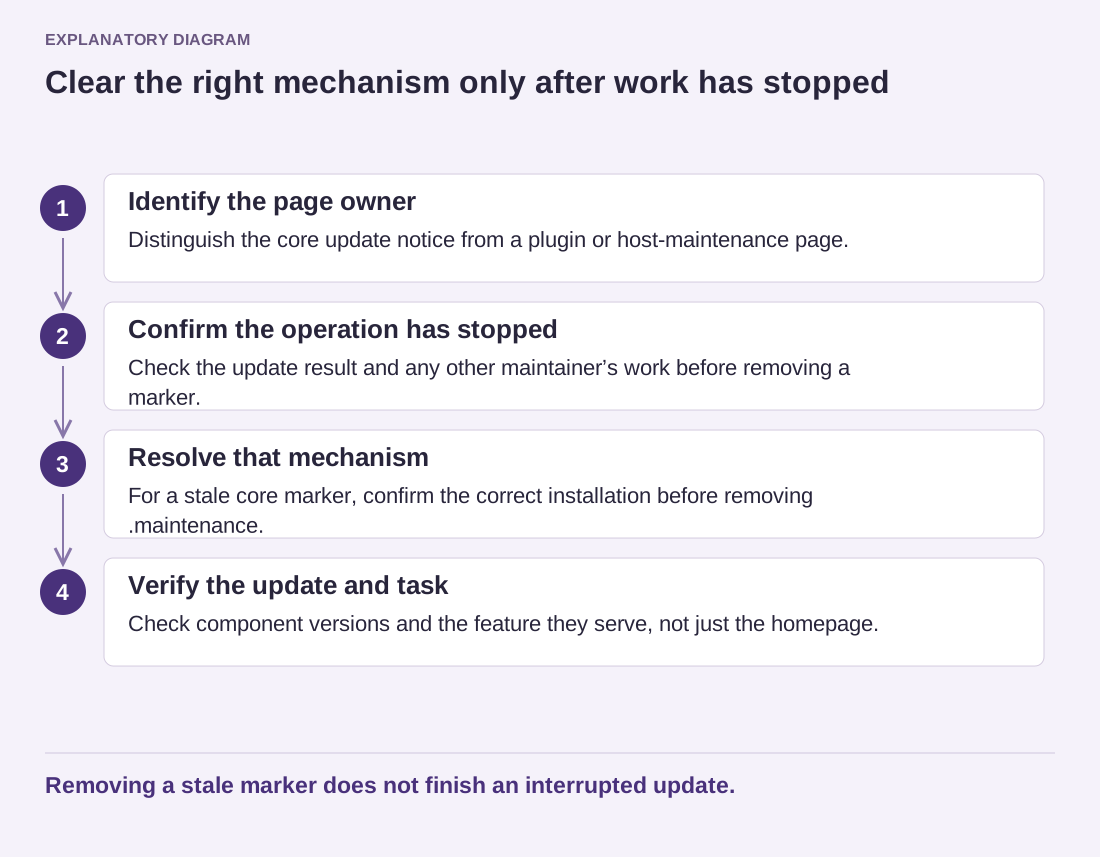
Read the diagram as text
- Identify the page owner: Distinguish the core update notice from a plugin or host-maintenance page.
- Confirm the operation has stopped: Check the update result and any other maintainer’s work before removing a marker.
- Resolve that mechanism: For a stale core marker, confirm the correct installation before removing .maintenance.
- Verify the update and task: Check component versions and the feature they serve, not just the homepage.
Removing a stale marker does not finish an interrupted update.
Suppose the notice disappears but the editor now reports an error. Record that as a separate result. Do not keep deleting files in the hope that the next removal will restore normal behavior. Preserve the logs and ask the host or component maintainer whether the update completed or whether a known-good backup should be restored.
Once the site works, review why the operation stopped. An interrupted connection, a resource problem or a failed update can call for different follow-up work; the visible notice alone cannot choose between them. Keep the resolution note specific: which update was involved, whether it finished, what marker or setting was cleared, and which visitor task passed afterward.