WordPress can send an administrator email when certain fatal errors trigger Recovery Mode. The message may identify a failing component and provide a special link that helps regain access. Treat that link as sensitive rather than forwarding the entire email into a public support discussion.
Verify the message through the known website and administrator mailbox. Unexpected messages claiming that urgent action is required can be deceptive. Check the destination before opening the recovery link, and use the normal trusted hosting channel if the message's origin is uncertain.
Recovery Mode can pause a faulty plugin or theme for the administrator's recovery session. That session-specific behavior should not be confused with a complete repair of the public site. The ordinary visitor may still encounter the underlying failure until an appropriate change is made.
Use the details to narrow the investigation
Record the component, version and error information provided, hiding private paths or tokens before sharing. A file named in an error is useful evidence, but the full cause may involve another dependency or an incompatible environment. Avoid deleting the named file merely because it appears in the message.
Review the recent change that preceded the error. If you can access the dashboard through the supported recovery route, use a deliberate, reversible action such as deactivating the implicated extension when appropriate. Understand what feature will stop working and preserve the relevant data before a broader removal.
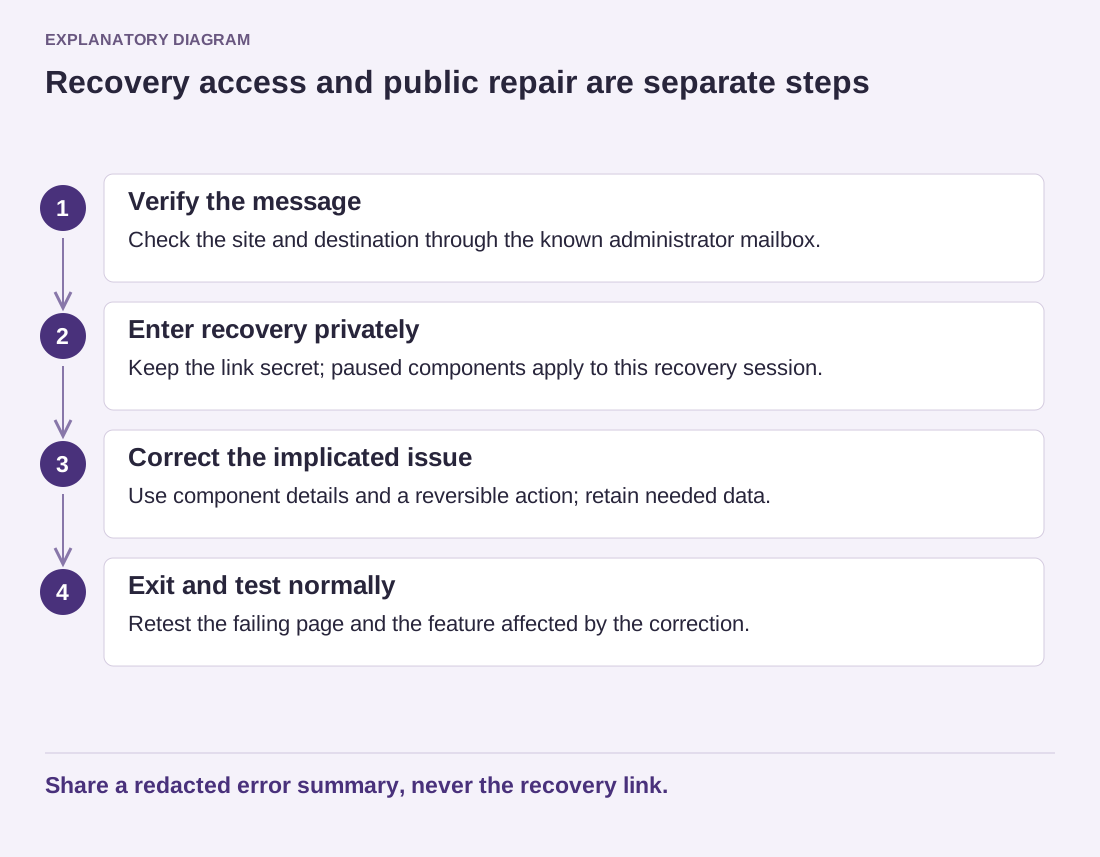
Read the diagram as text
- Verify the message: Check the site and destination through the known administrator mailbox.
- Enter recovery privately: Keep the link secret; paused components apply to this recovery session.
- Correct the implicated issue: Use component details and a reversible action; retain needed data.
- Exit and test normally: Retest the failing page and the feature affected by the correction.
Share a redacted error summary, never the recovery link.
If the email never arrives, do not wait indefinitely. The fatal error may prevent the site's usual mail integration from loading, or delivery may fail. Contact the hosting provider and use authorized logs and the official debugging guidance to continue.
After correcting the cause, leave Recovery Mode through its supported control and test the site normally. Check both the previously failing page and the feature affected by the change. A successful recovery-session login is not the final test.
Keep a redacted summary of the incident and verify that the administration email still reaches the responsible person. Future recovery is easier when the mailbox, credentials and hosting contact are already under the site's authorized control.