A page that slides sideways on a phone usually has content extending beyond the available width. The offending element may be a wide table, a fixed-width embed, a long unbroken string or a layout rule. Hiding overflow on the whole page can conceal the symptom while cutting off useful content.
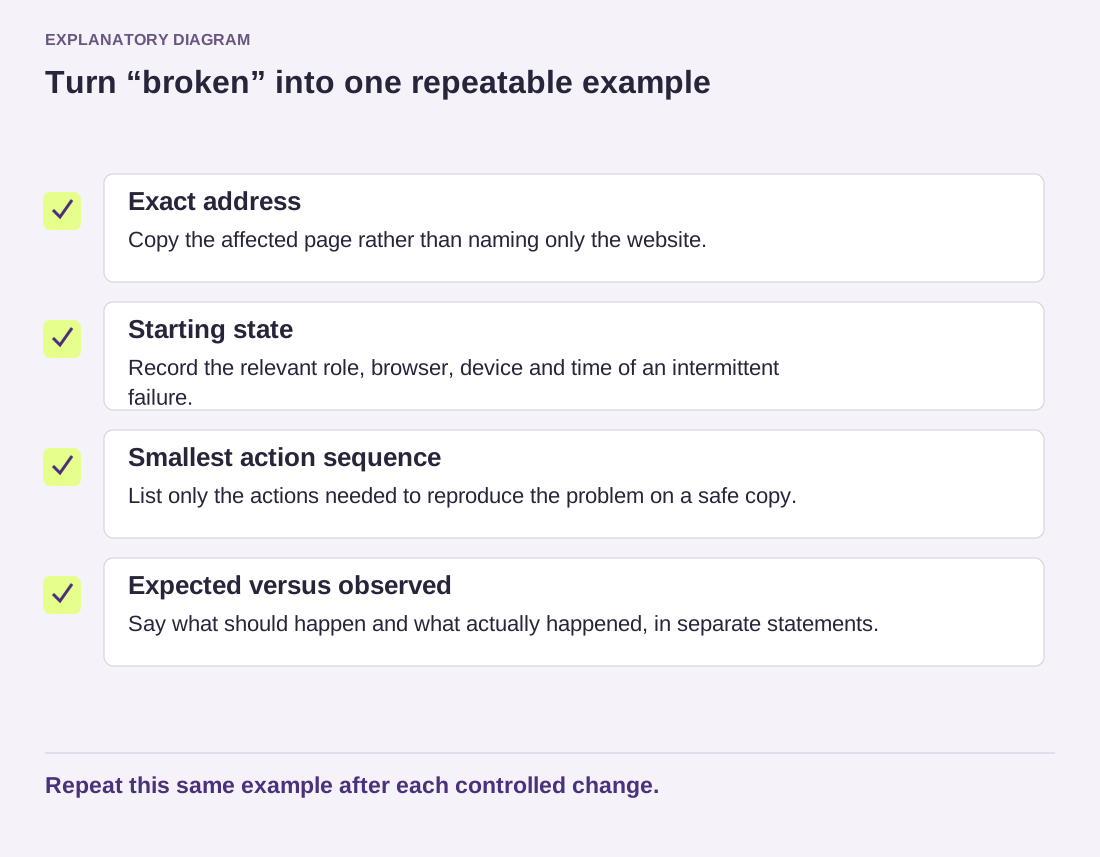
Reproduce the issue at the width where it appears. Check the actual page, not only the editor's canvas. Browser responsive tools help inspect it, but a real phone can also reveal interaction and text-size differences that a narrow desktop window misses.
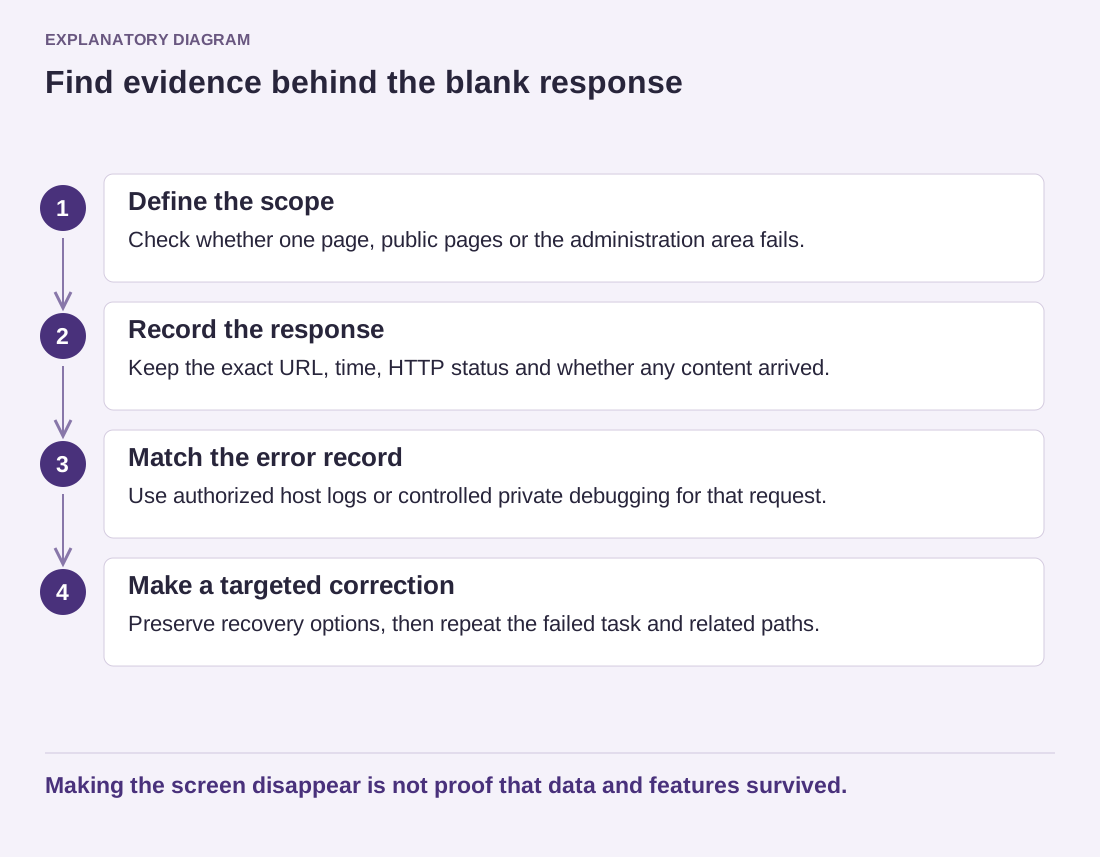
Look for the element whose box extends beyond the viewport. Inspect tables, embedded media, code samples and containers with explicit widths. A long URL or identifier can overflow even when the surrounding paragraph looks ordinary.
For a genuine data table, a controlled scrollable container may be appropriate. Readers still need to discover the scrolling area and understand the headers. For an image, a responsive width with preserved proportions may be the relevant correction. Those are different solutions because the content has different jobs.
An embedded widget may require settings or markup supplied by its provider. Do not force a width that breaks its controls or hides essential information. Test the smallest supported presentation and consider a simpler link if the widget cannot work reasonably in the available space.
Review padding, grid columns and minimum widths in the responsible theme or custom stylesheet. Keep the change scoped to the element or component. A global rule can fix one page and damage another layout that depended on the previous behavior.
Read the diagram as text
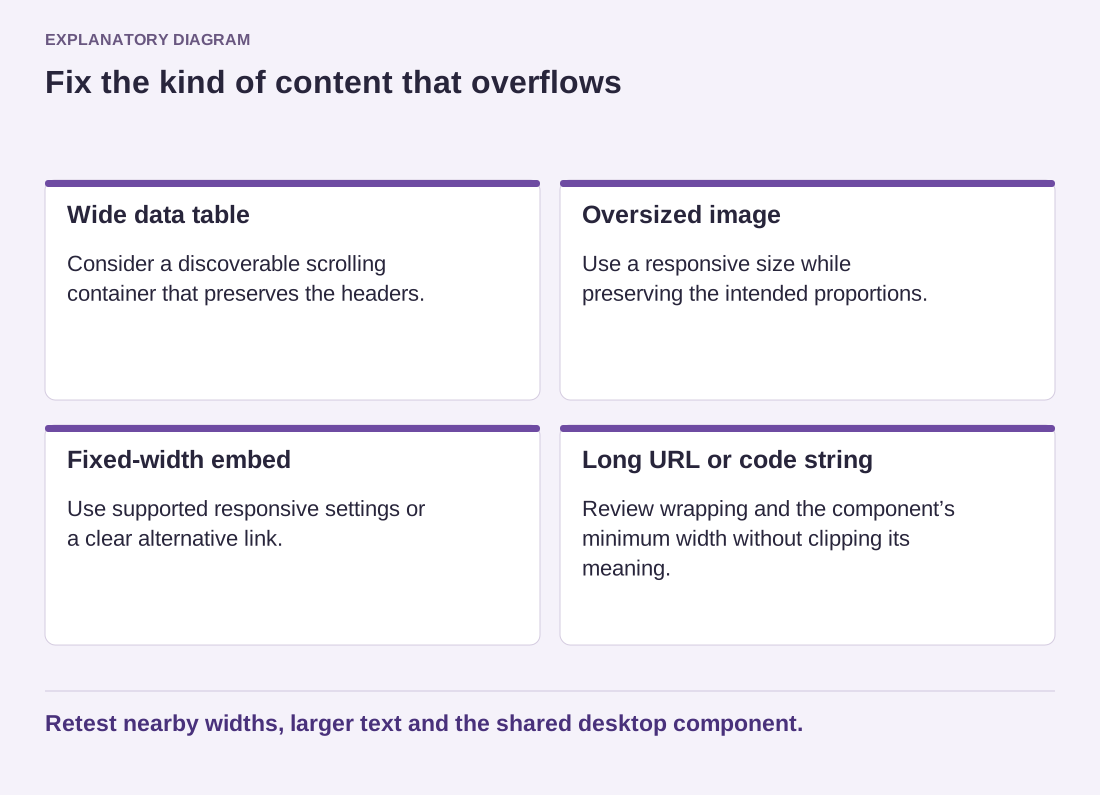
- Wide data table: Consider a discoverable scrolling container that preserves the headers.
- Oversized image: Use a responsive size while preserving the intended proportions.
- Fixed-width embed: Use supported responsive settings or a clear alternative link.
- Long URL or code string: Review wrapping and the component’s minimum width without clipping its meaning.
Retest nearby widths, larger text and the shared desktop component.
After correction, test a few neighboring widths, increased text size and both orientations where relevant. Check that buttons remain reachable and that content is not merely clipped. Also inspect a desktop page using the same component.
Save the cause and the targeted change with the site's design notes. A future imported table or long address may expose the same weakness, so understanding the component is more useful than a one-page visual patch.