Link text is a small promise about a destination. Readers often scan links before deciding what to open, so the wording should identify the next page without requiring a guess. Click here is rarely as helpful as a short description of the resource, especially when several links appear close together.
Write the sentence first, then select the words that naturally describe the destination. For example, a paragraph about organizing articles can link the phrase category planning guide. There is no need to turn the entire paragraph into a link or repeat the full page title if a shorter accurate phrase fits better.
Keep different destinations distinguishable. Three links all labeled Read more can be unclear when encountered outside their surrounding cards. Conversely, different labels pointing to the same page can make readers expect separate resources. Context can make repeated labels workable, but do not rely on appearance alone when clearer wording is available.
Use internal links where the next page answers a related question. Adding a link to every mention of a topic interrupts reading without necessarily helping navigation. A well-placed link near the moment a reader needs more detail is usually more useful than a dense collection of unrelated recommendations at the end.
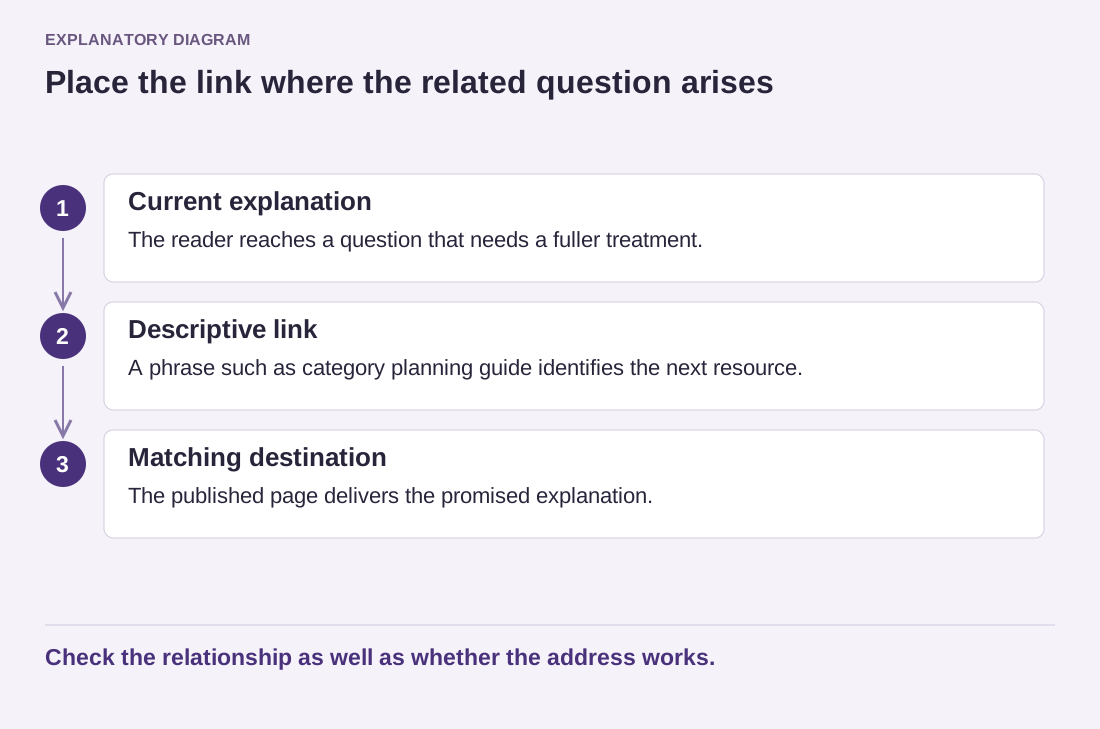
Read the diagram as text
- Current explanation: The reader reaches a question that needs a fuller treatment.
- Descriptive link: A phrase such as category planning guide identifies the next resource.
- Matching destination: The published page delivers the promised explanation.
Check the relationship as well as whether the address works.
Opening a new tab is another decision to make deliberately. Ordinary internal navigation usually does not require it. Unexpected new windows can be confusing, especially when visitors are using assistive tools or a phone. If a particular workflow benefits from preserving the current page, make the destination and behavior understandable rather than applying one setting to every link.
After editing, test the public URL and check whether the linked page still matches the description. A renamed or substantially revised article can leave old link text misleading even when the address continues to work. When a destination disappears, replace the link with a relevant alternative or remove the promise. Good internal linking depends on editorial relationships, not just the absence of broken URLs.