A draft is a working copy, not a failed publication. Use it to assemble the article while the public site remains unchanged. Starting with a title and a few plain paragraphs is enough. You can add images and refine the layout after the argument is clear, rather than interrupting every sentence to adjust spacing.
Create the appropriate content type, then locate the save-draft control in your editor. WordPress also has autosaving behavior, but a deliberate save and its confirmation are useful habits. Do not close the tab immediately after making a change. Wait until the interface indicates that saving has completed, particularly on an unreliable connection.
The preview lets you inspect the draft's presentation without publishing it. Its appearance depends on the theme, and some details are easier to judge in a separate preview tab than inside the editing canvas. A preview address is not necessarily a public review link that anyone can open; access can depend on an authenticated session and permissions.
Separate writing from the publication decision
Check the status before using the main action button. Save, Publish, Schedule and Update do different things. On an existing published page, updating can change the live content. If you need to prepare a major replacement without affecting visitors, establish an appropriate review workflow rather than assuming every edit remains private until another person approves it.
For a first article, make a small editing pass for structure: does the opening explain the subject, do paragraphs follow a useful order, and does each heading describe what follows? Then preview the links and images. This sequence reduces the temptation to keep polishing a layout whose text is still moving around.
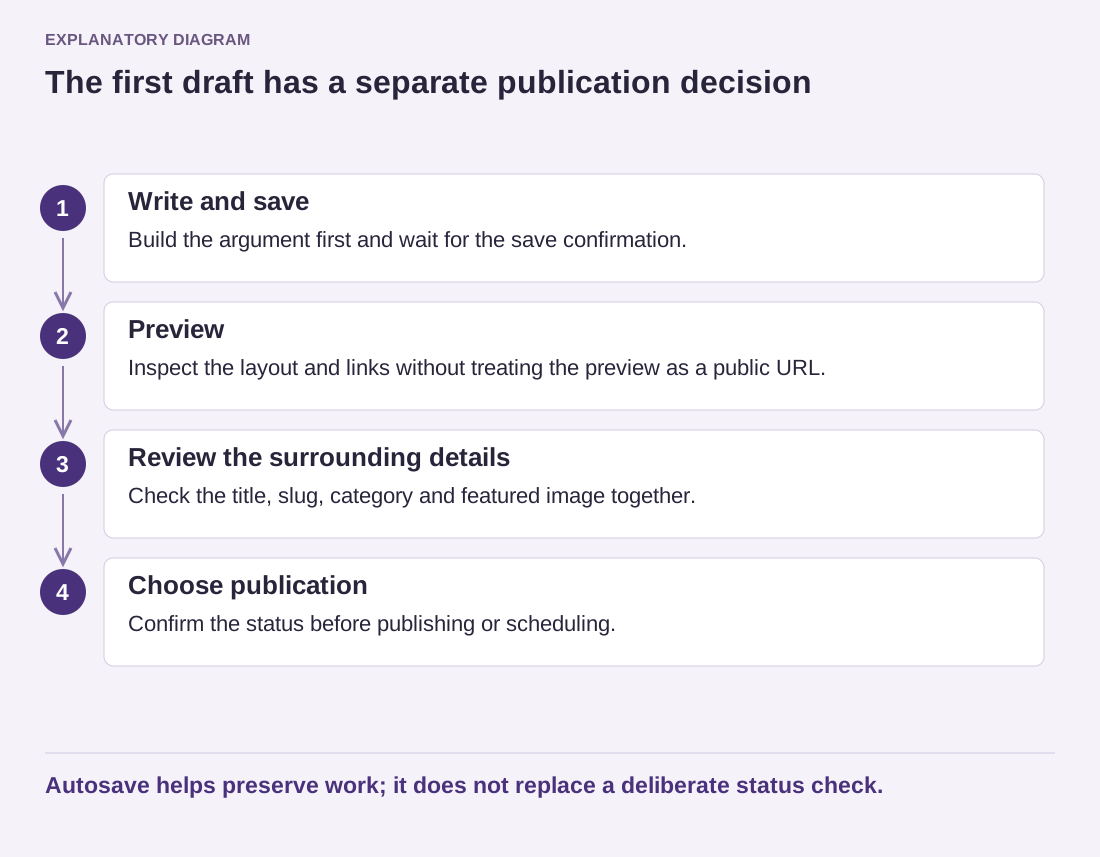
Read the diagram as text
- Write and save: Build the argument first and wait for the save confirmation.
- Preview: Inspect the layout and links without treating the preview as a public URL.
- Review the surrounding details: Check the title, slug, category and featured image together.
- Choose publication: Confirm the status before publishing or scheduling.
Autosave helps preserve work; it does not replace a deliberate status check.
Before publishing, read the actual title, slug, category and featured image selection together. These fields affect how the draft appears outside its own page. A carefully written article can still enter the archive with an accidental filename-like title or the wrong category. Save the final draft, review the preview once more, and publish only when those surrounding details match the content.