The dashboard is easier to learn when each area has a job attached to it. You do not need to explore every menu on the first day. Start with a concrete task, such as correcting a page title, and find the place responsible for that content. The public site and the administrative screen are different views of the same project.
Posts usually holds dated articles and their categories or tags. Pages holds content such as service descriptions and contact information. Media is the library of uploaded files. Editing a file's library details is not always the same as changing the way an existing image appears inside a particular article, so check the published result after either action.
Appearance concerns the active theme and its presentation tools. A block theme can provide the Site Editor, while a classic theme may expose the Customizer and different menu controls. The absence of a control shown in a tutorial does not automatically mean your installation is broken. Identify the active theme and the kind of editor before following design instructions.
Keep content changes separate from site settings
Settings contains choices that can affect the whole installation. The site language, time zone, reading arrangement and permalink structure are not ordinary paragraph edits. Read what a setting changes before saving it. In particular, avoid experimenting with the stored site addresses merely to see what happens.
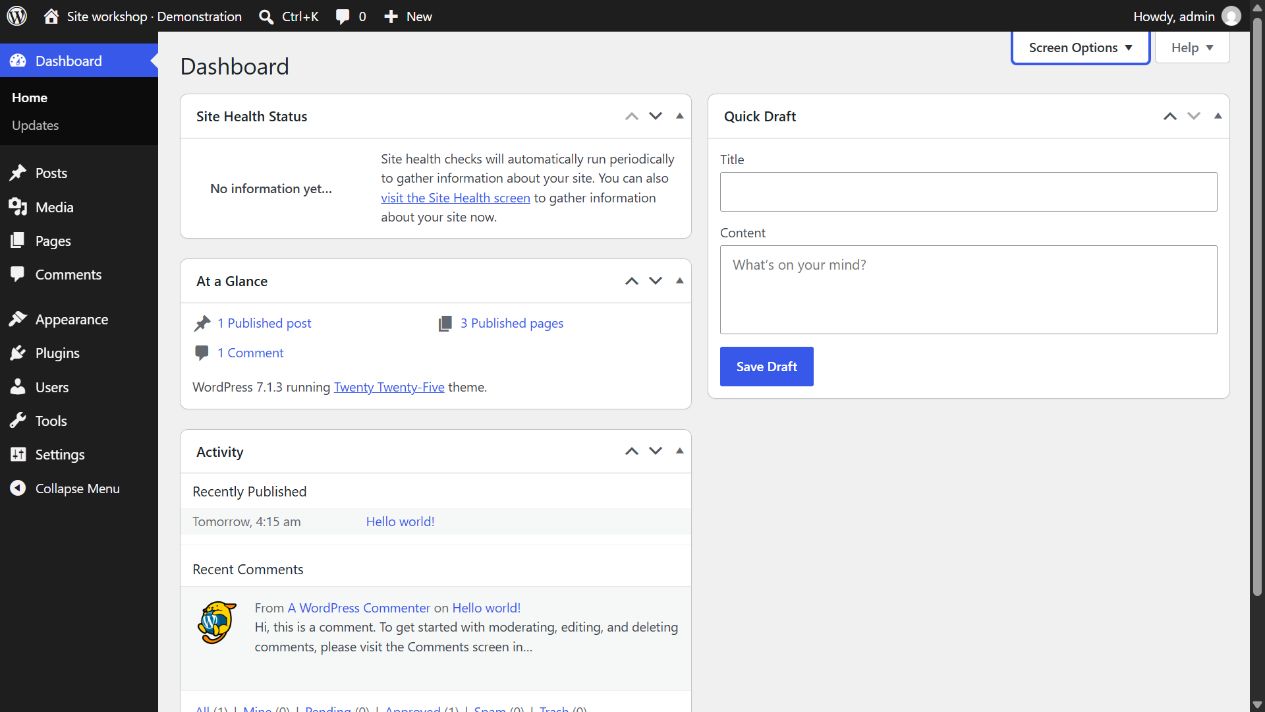
The menu also depends on your account's permissions. An author may be able to write posts without installing themes or changing site-wide settings. Plugins can add further entries, and hosting providers sometimes add their own panels. Compare the purpose of a screen rather than expecting every dashboard to have an identical list.
For your first session, open one existing page, locate its title and content, and return without changing anything. Then visit the public page in another tab. This small exercise establishes the relationship between editing and viewing. As you work, keep a short note of the routes you actually use. A personal map of five relevant screens is more useful than memorizing every administrative label at once.